 STPHE
STPHE Let recent chat choose the prompts.
An Auto Filter rule pairs a chat condition with an effect. Rules run in their numbered order.
Create a rule
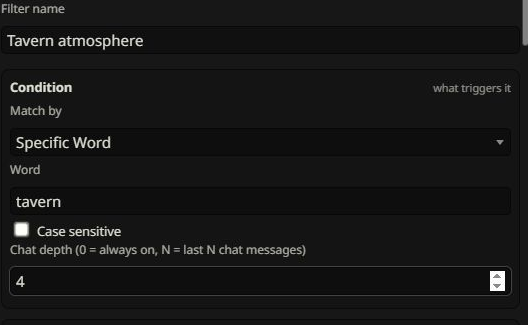
- Open Auto Filter and enter a name.
- Choose a word, regular expression, or XML-tag condition.
- Set chat depth: zero means always on; a positive number checks that many recent messages.
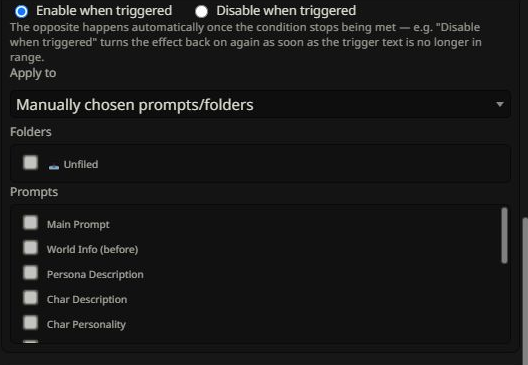
- Choose Enable when triggered or Disable when triggered.
- Select matching prompts/folders or manually chosen targets, then Add filter.
Group and order
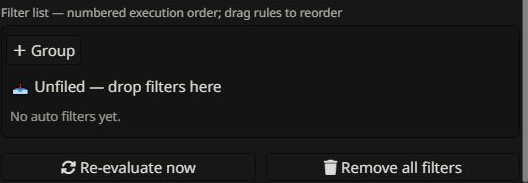
Use + Group and subgroup controls to organize rules. A muted group gates all descendant rules while preserving their individual checkboxes. Grouping does not alter execution order: numbered rule order wins when effects overlap.
Evaluation timing
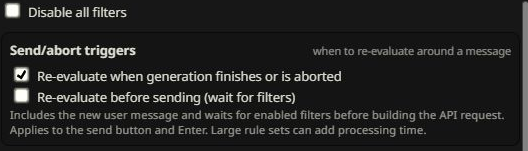
Rules react to supported chat events and rule edits. Re-evaluate now runs them manually. The master Disable all filters switch pauses automatic effects without deleting rules.
| Option | Meaning |
|---|---|
| Generation finishes or is aborted | Rechecks after completion, failure, or stop. Enabled by default. |
| Before sending (wait for filters) | Includes the new user message and awaits filter effects before request assembly. Works with Send and Enter; disabled by default. |
Example: a location trigger
Create a rule matching the word tavern in the last four messages. Set its effect to enable a manually selected atmosphere prompt. The prompt becomes active while that word is in range and turns off when it no longer matches. Keep an unrelated base instruction outside this rule’s targets.
Check your rule
Use a small selection first. Test a matching message and a non-matching message, inspect native prompt states, and check overlapping rules. Local OpenAI-compatible mock tests covered streaming, non-streaming, abort/error recovery, group gating, and pre-send timing; real providers can differ.