 STPHE
STPHE STPHE / Getting started
Start with a small hierarchy.
STPHE runs inside SillyTavern. Use a Chat Completion API to access the native Prompt Manager it organizes.
Install
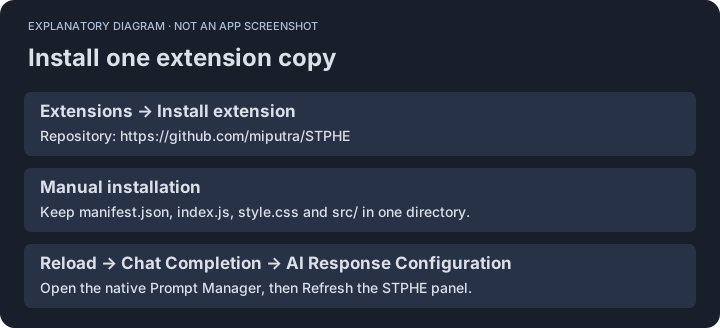
- In SillyTavern, open Extensions → Install extension and use
https://github.com/miputra/STPHE. You can also obtain the files from the STPHE repository for a manual installation. - For manual installation, place the extension directory in your SillyTavern user’s extensions directory. Keep
manifest.json,index.js,style.css, andsrc/together. - Reload SillyTavern and enable the extension if it is disabled.
- Choose Chat Completion and open AI Response Configuration once. The STPHE panel reads the native prompt list.
Upgrading from Prompt Folders? Update the existing installation. Do not install a second copy alongside it. The internal settings key and existing folder path may retain the old name intentionally.
Create your first folder
- Click Folder in the floating panel and enter a name.
- Use a prompt’s move selector to assign it to that folder.
- Open the folder’s More actions menu to add a subfolder.
- Toggle the folder off, then on. Its prompts keep their individual intended states.
Arrange the panel
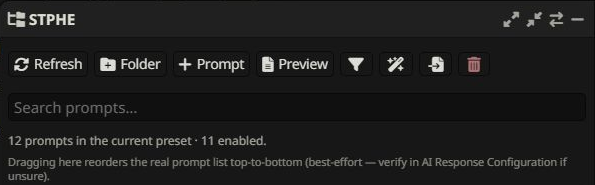
Drag the header to move the panel. Use grow/shrink controls, resize handles, the side-switch control, and minimize/restore to fit your layout. Search filters prompts by name or identifier.
Compatibility
The current integration was checked with SillyTavern 1.18.0. Native Prompt Manager methods can change between versions. If the list is unavailable, open AI Response Configuration and press Refresh. A live API connection is needed for generation, but not for basic folder organization.